
醬是創客的WebThings教學主題第4篇,以WebThings搭配Ai-Thinker安信可NodeMCU-32S(Arduino語言)來實作教學,本篇教學將著重使用ESP32與WebThings做出免費開源IoT物聯網平台連動,並透過平台控制繼電器開啟、關閉電燈,達到Server控制Client功能
以下是我們今天的目標
- 使用WebThingAdapter.h與Thing.h
- 了解WebThingAdapter的更新方法
- ThingDevice定義該設備定義(開關、溫度、濕度……等)、描述、名稱、網址ID
- ThingProperty定義多個Sensor屬性
設備:
樹莓派4B #露天拍賣 #蝦皮購物
安信可NodeMCU-32S #露天拍賣 #蝦皮購物
DC5V控制AC110V繼電器 #露天拍賣 #蝦皮購物
110V LED燈
接線方式:
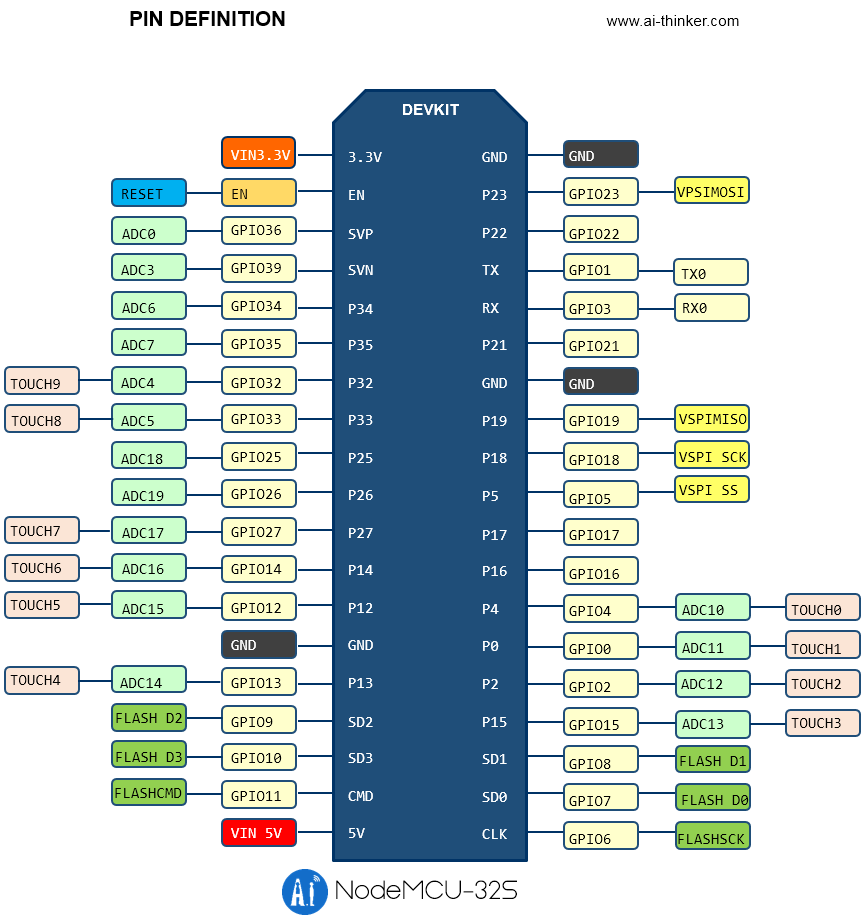
NodeMCU-32S(GPIO22)–DO訊號–DC5V控制AC110V繼電器(IN訊號)
DC 5V(+)–DC5V控制AC110V繼電器(DC+)
DC 0V(-)–DC5V控制AC110V繼電器(DC-)
DC5V控制AC110V繼電器(COM)-2.0白扁線-110V市電火線
DC5V控制AC110V繼電器(NO)-2.0白扁線-110V LED電燈-110V市電水線
DC5V控制AC110V繼電器(H)使用高電位觸發
Ai-Thinker安信可NodeMCU-32S的腳位圍(資料來源:安信可)
Arduino 範例程式碼如下
請注意: WordPress的bug,它把&轉換成HTML的&
因此內文中有出現&請自行轉成&
//醬是創客 開發實作的好夥伴
#define LARGE_JSON_BUFFERS 1
#include <WiFi.h>
#include <Arduino.h>
#include <Thing.h>
#include <WebThingAdapter.h>
//SSID/PW/Pin
const char *ssid = "iot";
const char *password = "chosemaker";
const int lampPin = 22;
//WebThings
WebThingAdapter *adapter;
const char *lampTypes[] = {"OnOffSwitch", nullptr};
ThingDevice lamp("chosemaker-lamp-1", "chosemaker Lamp", lampTypes);
ThingProperty lampOn("on", "Whether the lamp is turned on", BOOLEAN,"OnOffProperty");
bool lastOn = true;
void setup()
{
Serial.begin(115200);
pinMode(lampPin, OUTPUT);
digitalWrite(lampPin, HIGH);
WiFi.begin(ssid, password);
while (WiFi.status() != WL_CONNECTED) {
delay(500);
Serial.print(".");
}
Serial.println("");
Serial.print("Connected to ");
Serial.println(ssid);
Serial.print("IP address: ");
Serial.println(WiFi.localIP());
adapter = new WebThingAdapter("led-lamp", WiFi.localIP());
lamp.description = "IoT chosemaker lamp";
lampOn.title = "On/Off";
lamp.addProperty(&lampOn);
adapter->addDevice(&lamp);
adapter->begin();
Serial.println("HTTP server started");
Serial.print("http://");
Serial.print(WiFi.localIP());
Serial.print("/things/");
Serial.println(lamp.id);
// set initial values
ThingPropertyValue initialOn = {.boolean = true};
lampOn.setValue(initialOn);
(void)lampOn.changedValueOrNull();
}
void loop()
{
adapter->update();
bool on = lampOn.getValue().boolean;
if (on) {
digitalWrite(lampPin, HIGH);
} else {
digitalWrite(lampPin, LOW);
}
if (lastOn != on) {
lastOn = on;
}
delay(1000);
}
Arduino 序列埠監控視窗 輸出如下
Connected to iot
IP address: 192.168.2.188
MDNS responder started
HTTP server started
http://192.168.2.188/things/chosemaker-lamp-1
我們打開登入樹莓派的WebThings Gateway,在儀錶板的右下角點擊”+”並於”輸入web thing網址”輸入http://192.168.2.188/things/chosemaker-lamp-1,並儲存
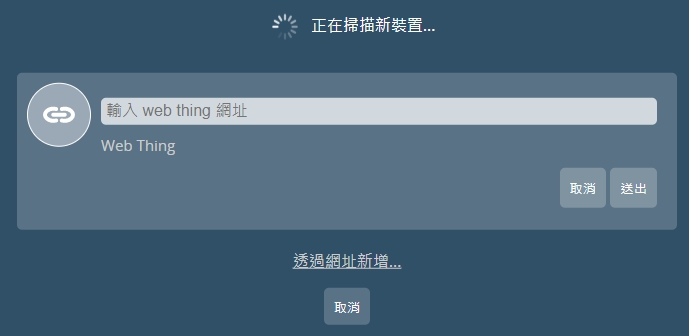
此時我們也可以連入http://192.168.2.188/things/chosemaker-lamp-1 ,可以看到這是一個JSON文件,Server於第一次取得設定檔時會連到Client抓取JSON回去對應欄位
{"id":"chosemaker-lamp-1","title":"chosemaker Lamp","@context":"https://iot.mozilla.org/schemas","description":"IoT chosemaker lamp","base":"http://192.168.2.188/","securityDefinitions":{"nosec_sc":{"scheme":"nosec"}},"security":"nosec_sc","@type":["OnOffSwitch"],"links":[{"rel":"properties","href":"/things/chosemaker-lamp-1/properties"},{"rel":"actions","href":"/things/chosemaker-lamp-1/actions"},{"rel":"events","href":"/things/chosemaker-lamp-1/events"},{"rel":"alternate","href":"ws://192.168.2.188/things/chosemaker-lamp-1"}],"properties":{"on":{"type":"boolean","title":"On/Off","description":"Whether the lamp is turned on","@type":"OnOffProperty","links":[{"href":"/things/chosemaker-lamp-1/properties/on"}]}}}
在儀錶板的位置即可以看到加入的chosemaker Lamp設備,可以點擊該圖式打開和關閉電燈開關